
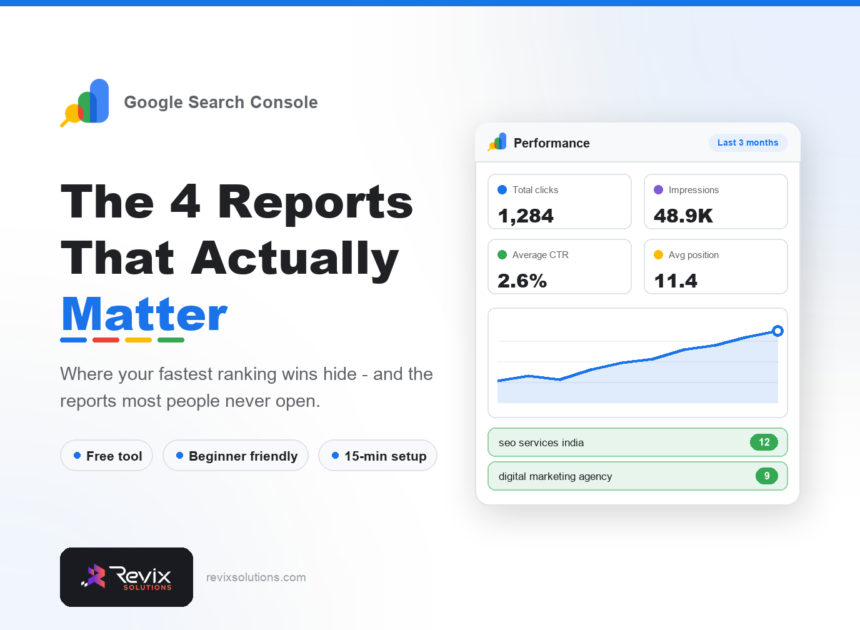
Google Search Console is the only tool that tells you what Google actually thinks of your site — which queries you appear for, where you rank, and what is stopping pages being indexed. It is free, and most business owners either never set it up or open it once and find it overwhelming. This guide covers setup, the four reports worth checking, and where the fastest wins hide. This Google Search Console guide covers only the reports that change a decision.
Google search console guide: the short answer
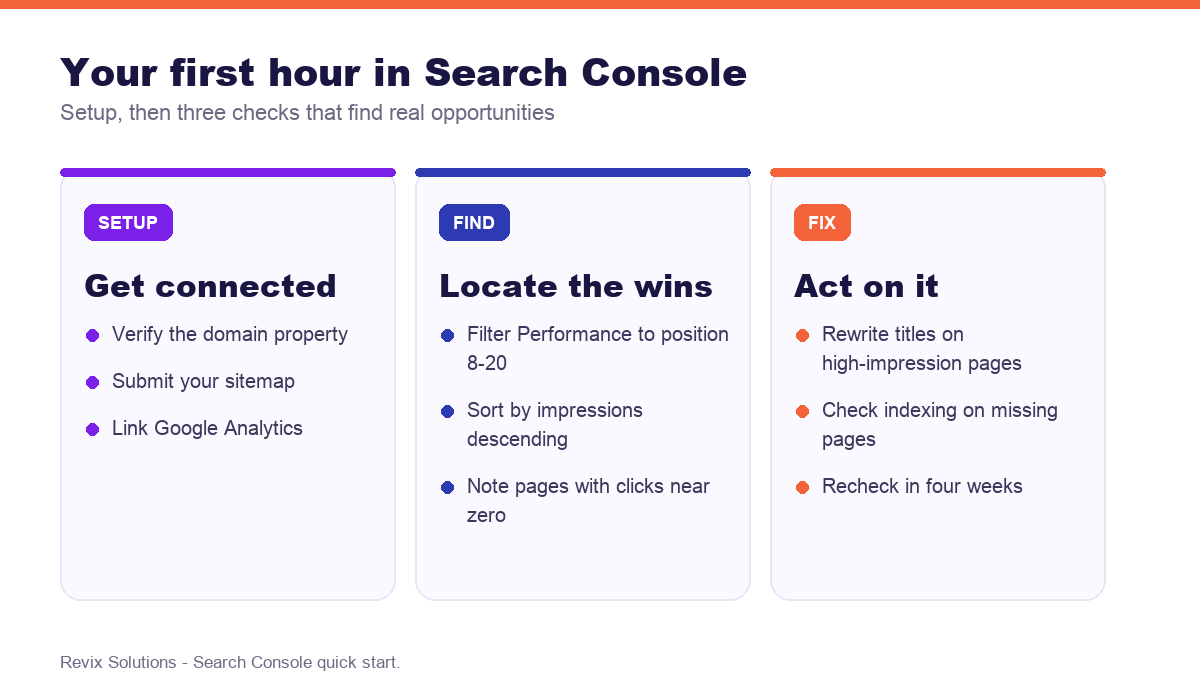
Verify your site, submit your sitemap, then use the Performance report filtered to positions eight to twenty and sorted by impressions. Those pages are already visible and one step from page one – improving their titles and content produces faster results than writing anything new. Check the Pages report for indexing problems, and ignore almost everything else.
Getting set up
Choose the domain property type rather than URL prefix when verifying. It covers every subdomain and both http and https in one property, which avoids the common problem of data split across four separate entries.
Verification is usually a DNS record added at your domain provider. Once verified, submit your sitemap — typically at /sitemap.xml or /sitemap_index.xml if you use an SEO plugin — and link your Analytics property. Data begins appearing within two to three days.
The Performance report
This is where nearly all the value is. It shows four metrics, and understanding the difference between them matters.
| Metric | What it means | What to do with it |
|---|---|---|
| Impressions | How often you appeared in results | Demand indicator – high impressions mean opportunity |
| Clicks | How often someone clicked | The number that matters commercially |
| CTR | Clicks divided by impressions | Low CTR at good position means the title needs work |
| Average position | Mean ranking across impressions | Below 15 means ranking, not CTR, is the problem |
The striking distance trick
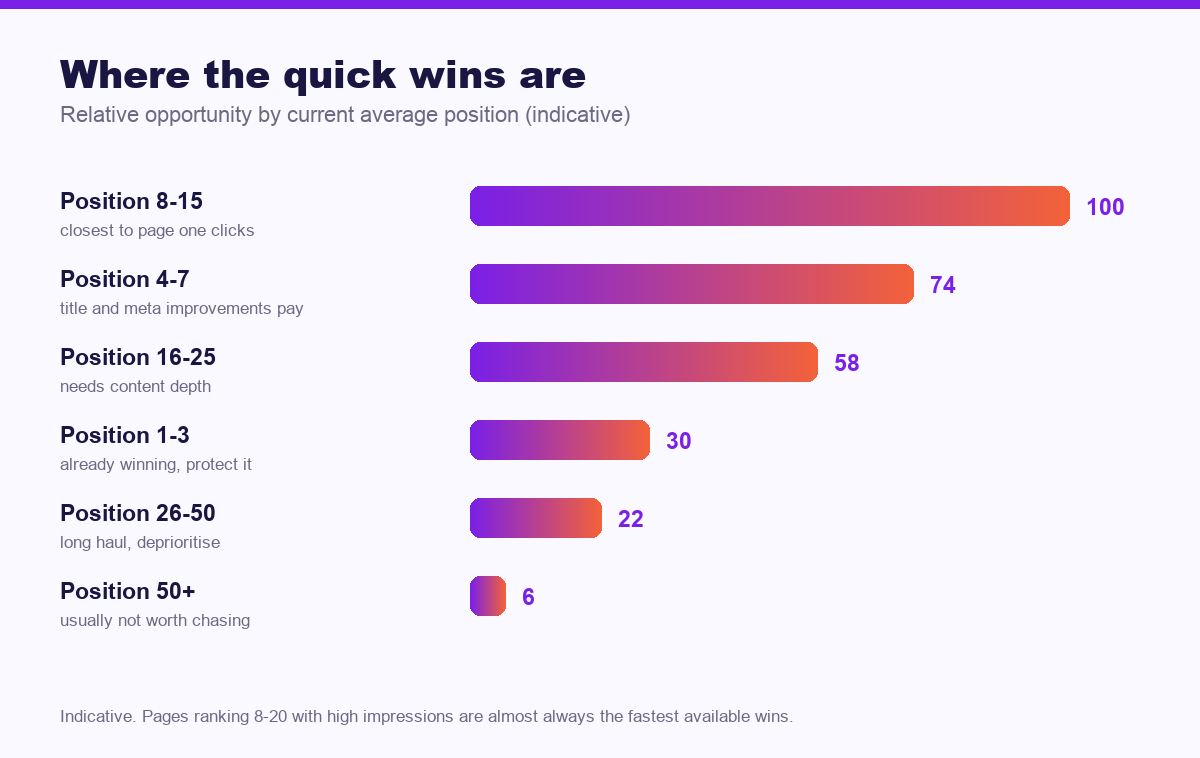
Filter to positions eight to twenty and sort by impressions, highest first. Those pages already rank but sit just below where clicks happen. They are the fastest wins available on any site, and the list usually surprises people.
Reading high impressions with no clicks
If a page has thousands of impressions and almost no clicks, check the average position before rewriting anything. Below fifteen, the problem is ranking — nobody scrolls that far. Between four and ten, the problem is your title and description, and rewriting them can produce results within weeks.
The Pages report
This tells you which URLs are indexed and, more usefully, which are not and why. A page that is not indexed cannot rank, so this is worth checking whenever you publish something new that fails to appear.
- Crawled – currently not indexed. Google saw it and chose not to index it, usually a quality or duplication signal.
- Discovered – currently not indexed. Google knows the URL exists but has not crawled it. Common on newer sites with limited authority; usually resolves with time and internal links.
- Duplicate without user-selected canonical. Google found near-identical pages and picked one. Consolidate or differentiate them.
- Excluded by noindex tag. Intentional if you set it, a problem if you did not.
The two other reports worth opening
Core Web Vitals shows real user performance data grouped by URL pattern, which is what Google actually uses rather than your Lighthouse score. Links shows which sites link to you and which of your pages are most linked internally — useful for spotting pages that deserve more internal linking than they get.
Everything else, including the enhancement reports for individual structured data types, is worth checking only when you are investigating something specific.
How often to check
Monthly is enough for most businesses. Compare the last 28 days against the previous period, look at whether impressions and clicks are trending up, and pick two or three striking-distance pages to improve. That is a fifteen-minute routine that compounds considerably over a year.
Frequently asked questions
Is Google Search Console free?
In practice, google search console guide follows the same rules for most businesses. Yes, entirely free for any website. You only need to verify that you own the site, which usually takes a few minutes through your domain provider or an HTML tag.
What is the difference between Search Console and Google Analytics?
Search Console shows how your site performs in Google Search before the click – impressions, clicks and position. Analytics shows what visitors do after arriving, from all traffic sources.
What is a good average position in Search Console?
Anything in the top ten is page one. Positions eight to twenty are the most valuable to work on, because small improvements there produce disproportionate click increases.
Why does Search Console show impressions but no clicks?
Usually because you rank too low to be seen, or your title and meta description are not compelling enough at the position you hold. Check average position first – below fifteen, ranking is the problem.
How do I submit a sitemap to Search Console?
Go to the Sitemaps section, enter your sitemap URL, usually sitemap.xml or sitemap_index.xml, and submit. Google will then report how many URLs it discovered and indexed.
How long does Search Console take to show data?
Data begins appearing within two to three days of verification, and the Performance report covers up to sixteen months once history accumulates.
If you would rather have google search console guide handled for you, our free SEO audit and SEO services cover exactly the work described above.
Google search console guide: what to do next
The short version of this guide: google search console guide rewards sequence over effort. Fix the foundations first, publish what your customers actually search for, then measure enquiries rather than rankings. Businesses that treat google search console guide as a system rather than a checklist are the ones still compounding a year later.
Impressions rising but clicks flat?
We will analyse your Search Console data, identify the pages closest to page one, and show you exactly which title, content and technical changes would convert those impressions into clicks.
Get your free Search Console review
Plans start from Rs 16,000 per month. See current pricing.
Related reading: GA4 for small business, keyword research for Indian businesses.